
The full manual
Help and documentation
Everything CrateOrganizer does, written out properly. The app’s own Help window carries the short version; this page is the long one. Nothing here assumes you know what a crate file is.
Contents
Smart crates
Getting started
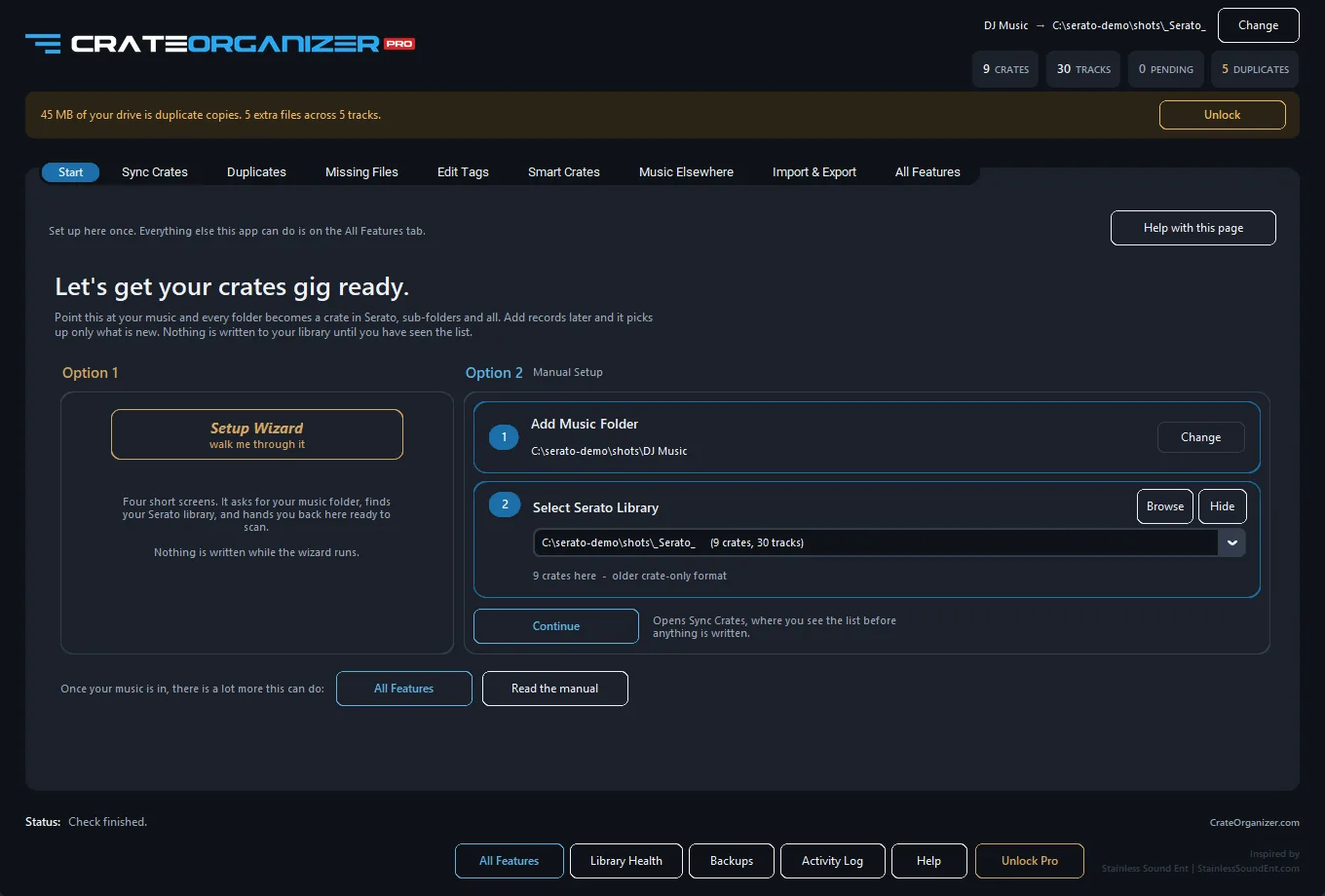
The Start tab. Set up here once: the wizard on the left, or the two cards on the right.
CrateOrganizer is one file. There is no installer, and nothing runs in the background after you close it.
- Download and run it. Windows may say “Windows protected your PC” the first time, because the app is new rather than because anything is wrong. Choose More info, then Run anyway.
- Close Serato. Serato holds its library in memory and writes it back over anything changed underneath it. The app refuses to write while Serato is open and says so.
- Set up once. On the Start tab, press Setup Wizard for four short screens, or fill in the two cards yourself.
- Scan, look, apply. Press Continue, then Scan your music folder. Read the list. Press Apply the changes.
- Open Serato and run Analyze Files so your new tracks get their BPM and key.
After that, adding music is two presses: Scan, then Apply. Only what is new gets written.
What the app writes, and what it never touches. It writes crate files into _Serato_/Subcrates, and backs every one of them up first. It does not move, rename or edit your audio, with two exceptions you ask for by name: a duplicate you choose to delete, and a file you rename yourself on the Edit Tags page.
Setup: the music folder and the Serato library
Why the music folder comes first
Serato stores each track’s location without a drive letter, so a crate on D: can only ever point at music on D:. The library therefore has to live on the same drive as the music. That single rule decides the order: pick the music, and the library follows from it.
What happens when you choose a music folder
| There is a Serato library on that drive | It is found and filled into step 2 for you. If there is more than one, the one holding the most crates wins, because Serato leaves an empty _Serato_ folder in your Music folder whether you use it or not. Press Browse to choose a different one. |
|---|---|
| There is no library on that drive | You are asked once: create an empty one at the root of that drive, find one yourself, or cancel. Creating one is the normal answer when you are starting from scratch, or on a gig drive that has never been used with Serato. |
| The library is on another drive | Step 2 says “Different drive from your music”. Crates written there would point at nothing, so the pair is refused rather than written. |
Choose the top folder, not a genre
If your music lives at D:Music, choose that. Every folder inside it becomes a crate, and folders inside those become sub-crates, as deep as your folders go. Choosing a single genre folder gives you that genre and nothing else.
Too many libraries in the list
The app looks on every drive, so the picker can fill up with old or empty _Serato_ folders you never use. Select one and press Hide. It disappears from the list and nothing else happens: the folder, the crates and the music are all left exactly where they are. Once something is hidden, the last line of the list reads Show all hidden libraries, and choosing it brings them back.
Two kinds of Serato library
Older Serato keeps everything in the _Serato_ folder: a Subcrates folder and a file called database V2. Newer Serato DJ Pro keeps the real library in its own database and rewrites database V2 from it on every launch, which is why tools that only edit the folder appear to do nothing. CrateOrganizer detects which generation you are on, says so under the library picker, and works with all three.
Sync Crates: the daily job
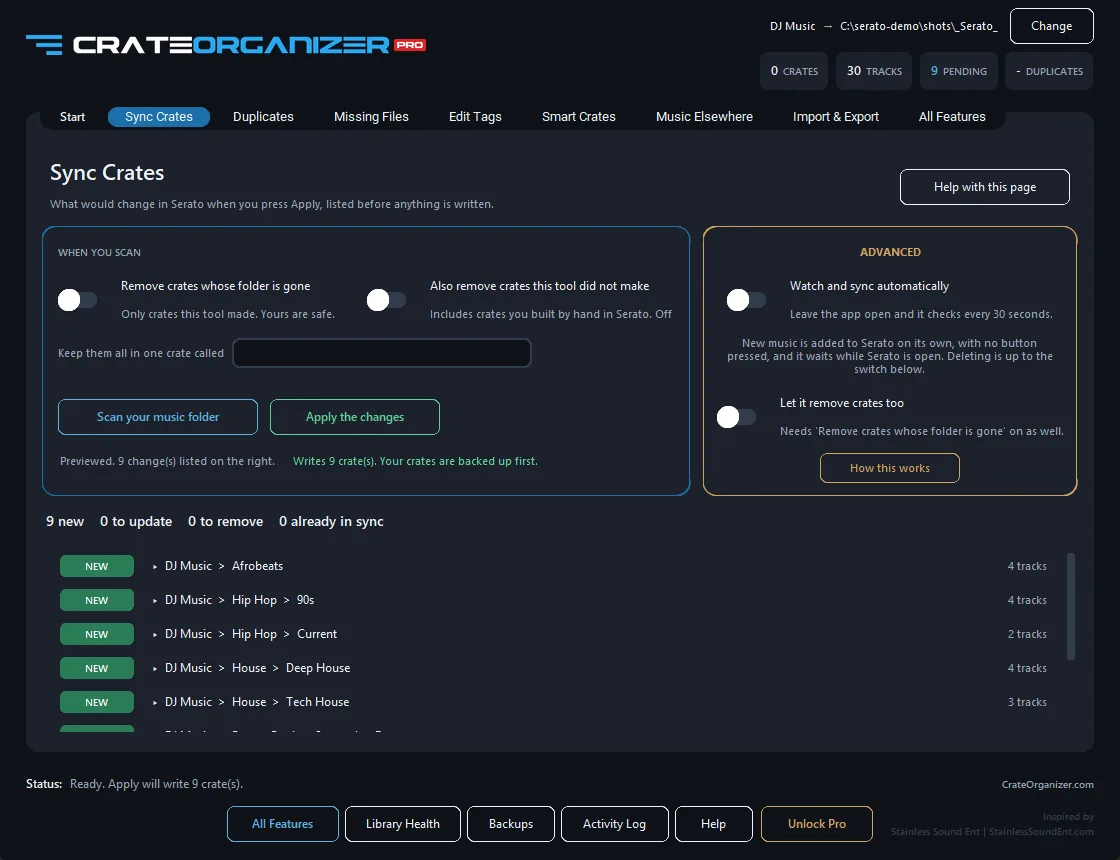
Every change is listed before it happens. Apply writes exactly this and nothing else.
This page holds the two buttons and the list of what they would do.
Reading the list
| NEW | A crate that does not exist yet. Its track count is shown on the right. |
|---|---|
| UPDATE | A crate that exists but whose contents have changed. |
| IN SYNC | Already correct. Nothing will be written to it. |
| STALE | A crate whose folder has gone. Left alone unless you switch removal on. |
| REMOVE | A crate that will be deleted when you press Apply, because removal is switched on. |
Click any crate in the list to open it and see the tracks inside, up to three hundred of them. Crate names are shown the way you would say them, DJ Music > House > Deep House, rather than with Serato’s own %% separator.
Scan settings
| Remove crates whose folder is gone | Off by default. When on, a crate whose folder no longer exists is listed for removal. It only ever reaches crates built from your folders: anything you made by hand in Serato is untouched. |
|---|---|
| Also remove crates this tool did not make | Off by default, and it asks before it arms. This widens removal to any crate that does not match a folder, including crates you built yourself. Useful when you are rebuilding a library from folders and want the leftovers gone. |
| Keep them all in one crate called… | Optional. Type a name and every crate this tool makes goes inside one crate with that name, so Serato shows one line you can expand instead of twenty at the top level. It changes nothing on your drive. |
What Apply actually does
It zips every crate file into a timestamped backup, writes each crate atomically, verifies it, and only then reports done. If anything fails part way, the crates already written are valid and the backup covers all of them.
Watch and sync automatically
In the Advanced panel on Sync Crates. With it on, CrateOrganizer checks your music folder every thirty seconds and adds new music to Serato on its own.
The rules, in full
| The app must be open | It is not a Windows service and nothing runs after you close the window. Minimised is fine. Close it and watching stops until you open the app again. |
|---|---|
| It polls, it does not listen | Every thirty seconds it takes a signature of your folder tree and compares it. Filesystem events are unreliable on external and network drives, and a missed event would mean your crates silently stop matching your folders. |
| What counts as a change | A new folder of records, tracks added to or removed from a folder, a folder renamed. Editing a track’s tags does not change any crate, so it does not trigger a sync. |
| It waits while Serato is open | The change is noticed, a line goes into the activity log, and nothing is written until Serato is closed. Then it catches up on its own. |
| It adds. Deleting is a separate switch | By default a crate whose folder has gone is left alone, with a message on screen and in the log saying the removal is waiting for a scan you press yourself. |
| Let it remove crates too | Off until you turn it on and confirm. With it on, the watcher also removes those crates, still obeying the removal switches on the left, and tells you afterwards in the log and in an amber message with a button straight to Backups. |
| An unreachable drive is not an empty one | If the drive is unplugged the watcher reports that it is waiting rather than treating the missing folders as deletions. On the next launch, watching stays off until the folders are reachable. |
Changing how often it checks
Thirty seconds by default. The interval is stored in settings.json as watch_interval_seconds and is clamped between 5 seconds and one hour.
Library Health
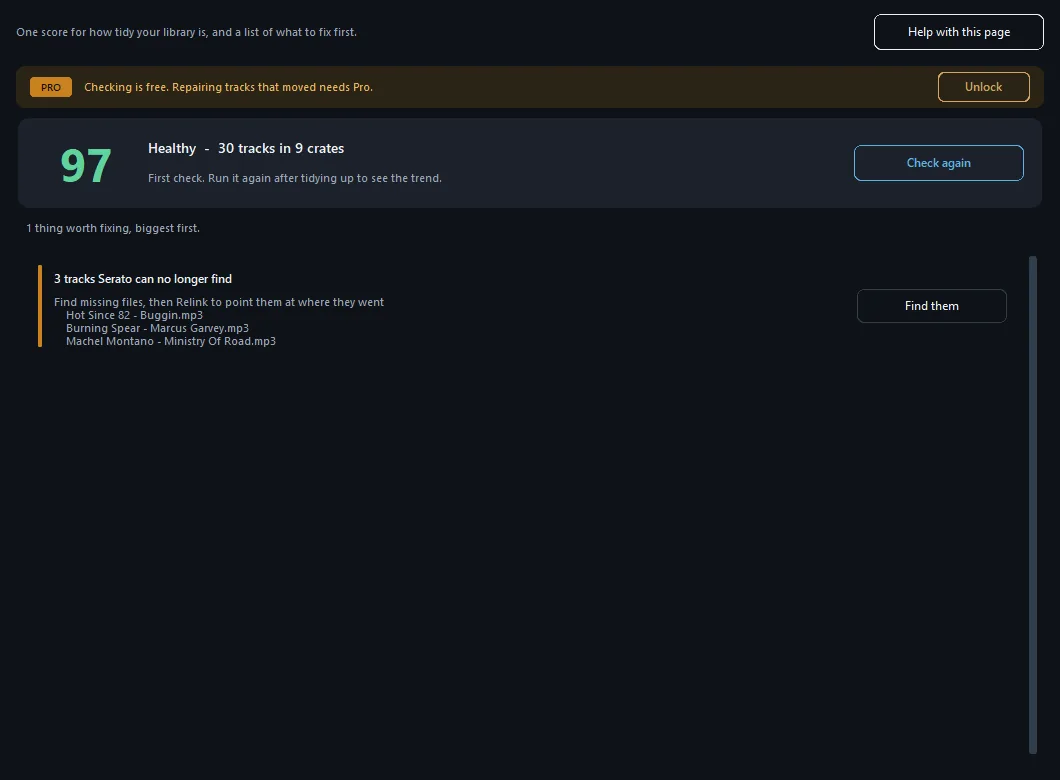
One score, and the biggest problem first.
One score out of a hundred for how tidy your library is, and a list of what to fix first. Open it from the button at the bottom of the window.
The whole page is free. It names every problem it finds, in full, and it never writes anything to your library. Nothing here is hidden behind a payment, because you cannot decide whether a clean-up is worth paying for until you can see what is broken. The repairs themselves happen on the Missing Files tab.
What the score is made of
| Missing | The file is gone: the track will not play at all. The heaviest penalty. |
|---|---|
| Will not play | The file is there but will not open, is empty, or is shorter than the library remembers, which is what a half-finished download looks like. |
| Duplicates | Wasted space, and the same track four times in every search. |
| In no crate | Music on the drive that no crate holds. Serato can only play what it can see. |
| No BPM or key | Not analysed, so it is missing from every smart crate. |
| Empty crates | Clutter, and the lightest penalty. |
Speed on a real library
The deep check opens every file, which is almost entirely time spent waiting on the drive, so it runs on a pool of threads and remembers each answer against the file’s size and modified time. On a test library the difference is stark: one file at a time takes about ten minutes per hundred thousand tracks, eight at a time takes about one minute, and a second check of an unchanged library takes seconds. The cache lives in serato-sync-backups/health-cache.json and can be deleted safely, at the cost of one slow run.
History
Every check is recorded with its date, score and counts. The page lists the last eight so a clean-up spread over weeks reads as progress, and marks the best score so far. Running the check twice in one afternoon replaces that day’s entry rather than pretending to be two days of work.
Where the repairs are
Not here. This page diagnoses and stops, which is deliberate: a page that scores your library and operates on it in the same breath makes it hard to tell which half is doing what. When the score lists tracks Serato cannot find, Fix them takes you to the Missing Files tab, where all three ways of putting them back live together.
Duplicates
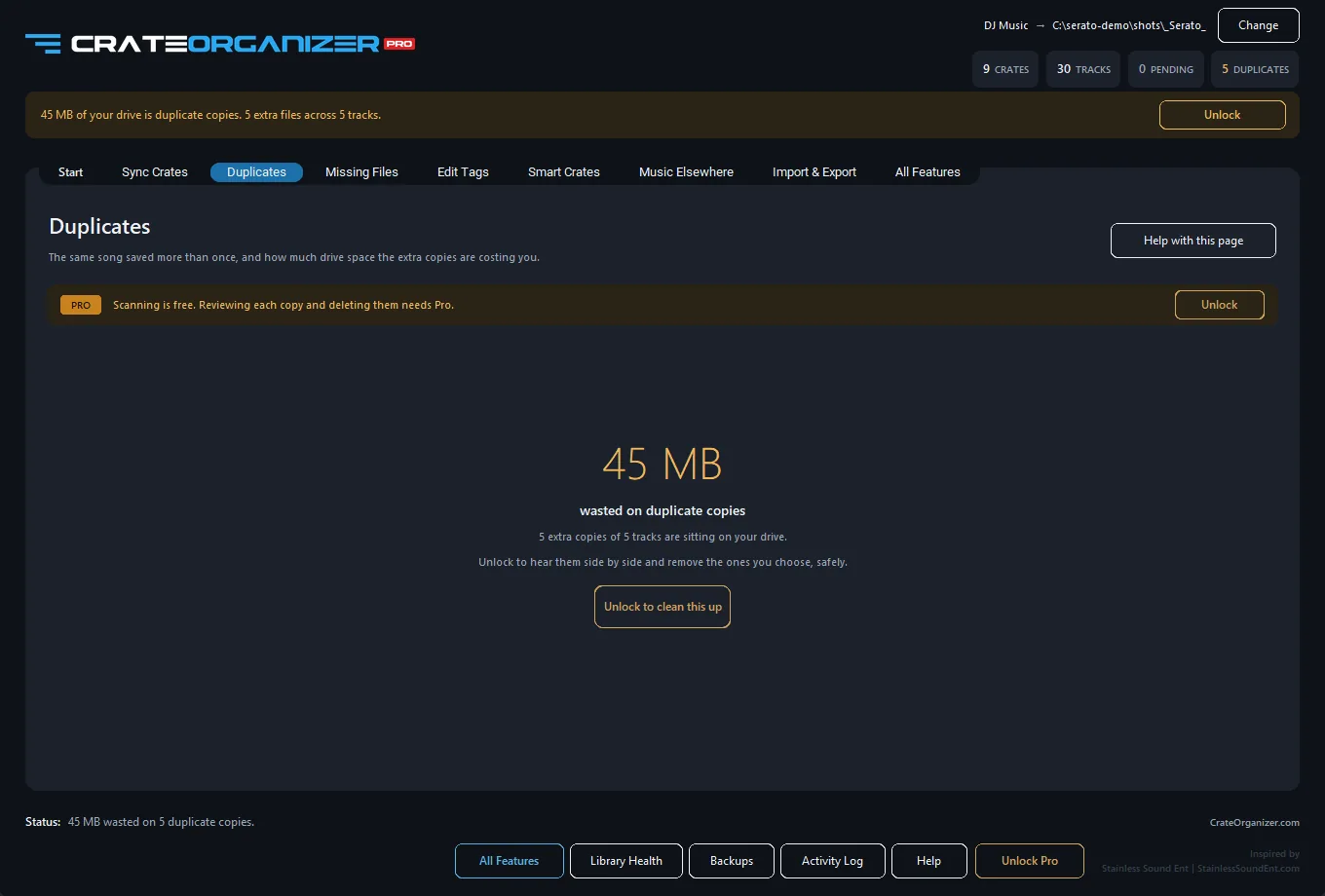
Grouped by how certain the match is, with length, bitrate and size beside every copy.
The same song saved three or four times under different names, and what it is costing you in drive space. Scanning is free; reviewing each copy and deleting needs Pro.
How copies are matched
| Tags | Artist and title, compared loosely enough to survive punctuation, capitals and “feat.” spelt four ways. |
|---|---|
| File name | For tracks with no tags worth reading. |
| Contents | Optional and slower: reads the files byte for byte to find exact copies whatever they are called. |
Remixes, live cuts, edits and different versions are deliberately left alone. A track called “(Radio Edit)” is not a duplicate of the extended mix.
Choosing what to keep
Each group suggests a keeper: the highest bitrate, then the longest, then the one in the tidiest folder. You can override it. Deleting sends files to the Recycle Bin, never straight to nothing, removes them from your crates and from Serato’s database so no warning triangles are left behind, and backs your crates up first. Once a group has one copy left it is marked RESOLVED so you can see what survived.
Missing Files
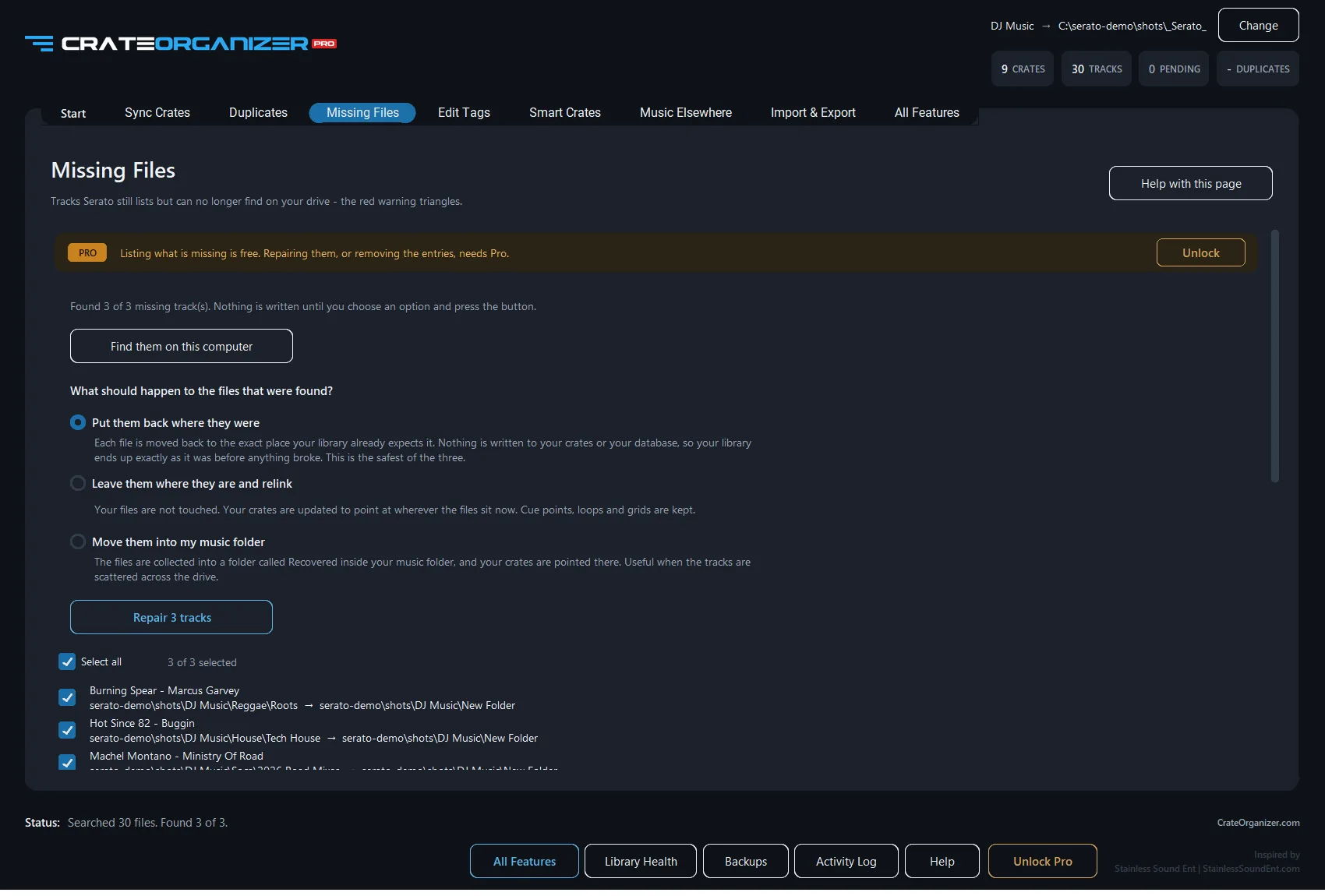
Three ways back, and the safest one is the default.
Tracks Serato still lists but can no longer find on your drive: the red warning triangles. Listing them is free; removing the entries needs Pro.
There are two different lists here, which is why other tools seem to only half fix this problem:
| Your crates | Entries inside crate files pointing at files that are gone. Cleared by the crate sync, or repaired here if the files merely moved. |
|---|---|
| Serato’s own library | Serato keeps its own list of every track it has ever seen. Clearing a crate does not touch it, which is why the triangles come back. This page removes those entries directly, and backs the database up first. |
Only tracks on a drive that is currently connected are offered for removal. A track on an unplugged gig drive is not missing, it is elsewhere, and treating those as gone is how a library loses half its contents.
Finding the files again
Press Find them on this computer. It reads through your music folder first, because a track that went missing has usually just moved within it, and only widens the search to the rest of the drive if something is still unaccounted for. Matching is by file name, then by file size and by the tags inside the file, so a renamed track is still recognised.
What it finds is listed with a tick beside each one. Confident matches are ticked for you. Anything matched on the file name alone is left unticked, because that is a guess and it is yours to check.
Select all, at the top of the list, ticks or unticks the whole list in one press, which is the difference between one click and four hundred on a library that has really come apart. Beside it is a running count of what is selected, and it says so when the ones still unticked are the guesses, so Select all is never a leap in the dark. The button underneath names the number it is about to touch, and greys out when nothing is ticked.
The three ways back
| Put them back where they were | Each file is moved back to the exact place your library already expects it. This writes nothing to your crates or to Serato’s database at all, so your library ends up exactly as it was before anything broke. It is the safest of the three and it is the default. If something else has since taken that spot, that track is reported rather than overwritten. |
|---|---|
| Leave them where they are and relink | Your files are not touched. Your crates and Serato’s database are updated to point at wherever the files sit now. This is the one to use when you moved the music on purpose. |
| Move them into my music folder | The files are gathered into a folder called Recovered inside your music folder, and your crates are pointed there. Useful when the tracks have ended up scattered across the drive. |
All three keep your cue points, loops and grids, because those live in the library rather than inside the file. Your crates are backed up before anything is written, and nothing happens until you choose an option and press the button.
What it is allowed to read
Windows does not put a permission prompt in front of a desktop app reading your own files, so CrateOrganizer asks you itself before the first search, and tells you which folders it is about to read.
It only ever searches the one drive your Serato library lives on. That is not caution, it is arithmetic: Serato stores each track’s location without a drive letter, so a crate on D: can only point at music on D:, and a copy of your track sitting on E: could not be the answer. If your music really has moved to another drive, point the app at that drive instead.
Some folders are closed to it whatever it does: another Windows user’s profile, and folders the system reserves. Those are skipped and counted, and the count is shown with the results, so a search that could not reach half a drive never looks like a search that found nothing.
Two things can block the repair rather than the search. Serato itself holds files open while it is running, which is one of several reasons the app refuses to write while Serato is open. And Windows ransomware protection, if you have it switched on, guards Documents, Music, Desktop and Pictures against exactly the kind of move this does. Either way the track is reported with the reason in plain words rather than a Windows error number.
Edit Tags, and renaming files
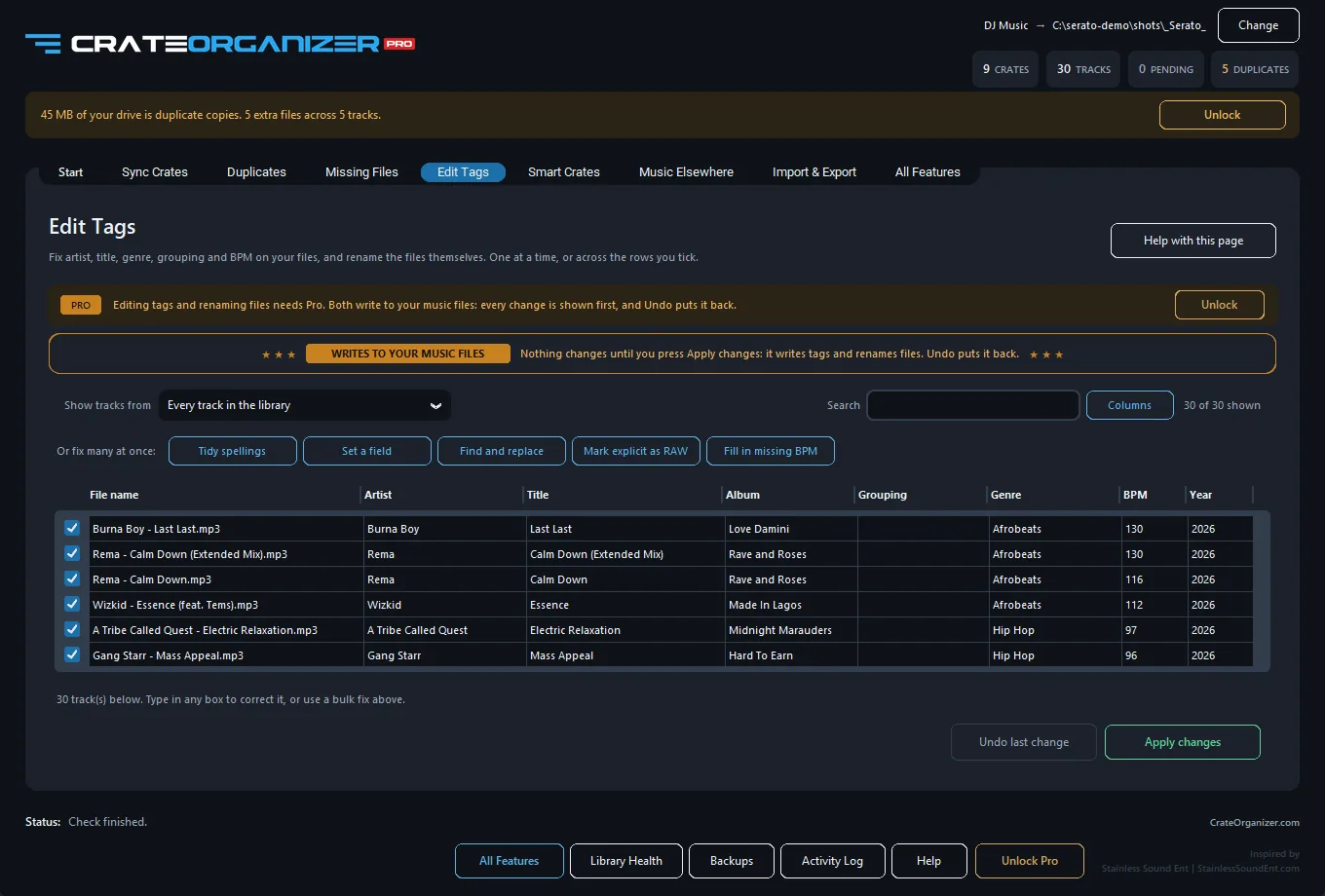
One row per track, one column per field. Type into a box and it turns bright orange until you apply.
The one page that changes your music files themselves. It says so at the top, in amber, every time. Pro.
The table
One row per track, one column per field: file name, artist, title, album, grouping, genre, BPM and year to start with. Type straight into a box. A changed box turns bright orange, black text on orange, so you can see exactly what you touched at a glance down a full table. Nothing is written until you press Apply changes.
| Choosing columns | Press Columns to turn any of them off, or bring in album artist, composer and track number. Your choice is remembered. The file name column cannot be turned off, because without it one row cannot be told from another. |
|---|---|
| Column widths | Drag the grip on the right of any heading to widen or narrow that column. Double click a grip to hand it back to the automatic layout. Widths are remembered. |
| Search | Filters as you type, across every field on show, not just the title. |
| Which tracks | Pick the whole library or one crate from the box at the top left. Rows load a hundred at a time so a large library does not freeze the window. |
| Ticks | Untick a row to leave that track alone. Bulk fixes and Apply both obey the ticks. |
Renaming files
Type over the file name and the file is renamed on your drive when you apply. This is the reason to do it here rather than in Explorer: renaming a file behind Serato’s back is what produces a screen of red triangles. CrateOrganizer renames the file, then repoints every crate that holds it and Serato’s own database at the new name, in one go. Illegal characters are stripped, the extension is kept if you delete it, and a rename onto a name that already exists is refused and reported rather than overwriting anything.
The bulk fixes
| Tidy spellings | Collapses the different spellings of one artist, genre, album or album artist into the best one, judged on capitalisation and punctuation rather than on which came first. |
|---|---|
| Set a field | Writes one value across the ticked rows. It says how many tracks that is before it fills anything in, because setting one artist across a whole library is the kind of mistake that is only obvious afterwards. |
| Find and replace | Within one field, across the ticked rows. |
| Mark explicit as RAW | Reads what the file already says about itself, the title, album, grouping, genre and file name, for words like explicit, dirty, uncensored or raw, and marks those. Words like clean or radio edit mark the other way. Nothing is inferred from the audio: an unlabelled track is left alone, because guessing “clean” is how a swear word ends up in a wedding first dance. |
| Fill in missing BPM | Listens to tracks with no BPM and writes one only where it is confident. Serato’s own Analyze Files is still the better answer where you can run it. |
A bulk fix does not open a separate list: it types its suggestions into the table in orange, so there is one table and one Apply.
Stopping halfway through
Retagging a library is not one sitting. Anything typed but not applied is written to unfinished-tag-edits.json beside your crate backups. Open the app again, go back to the same selection, and every box comes back exactly as you left it, still amber, still unwritten, with a line telling you how many returned. Applying clears the note.
Undo
Every write records the previous value of every field in a journal beside your crate backups, and every rename records the old path. Undo last change reverses whichever came last, tags or renames, and puts your crates back with it.
Smart crates
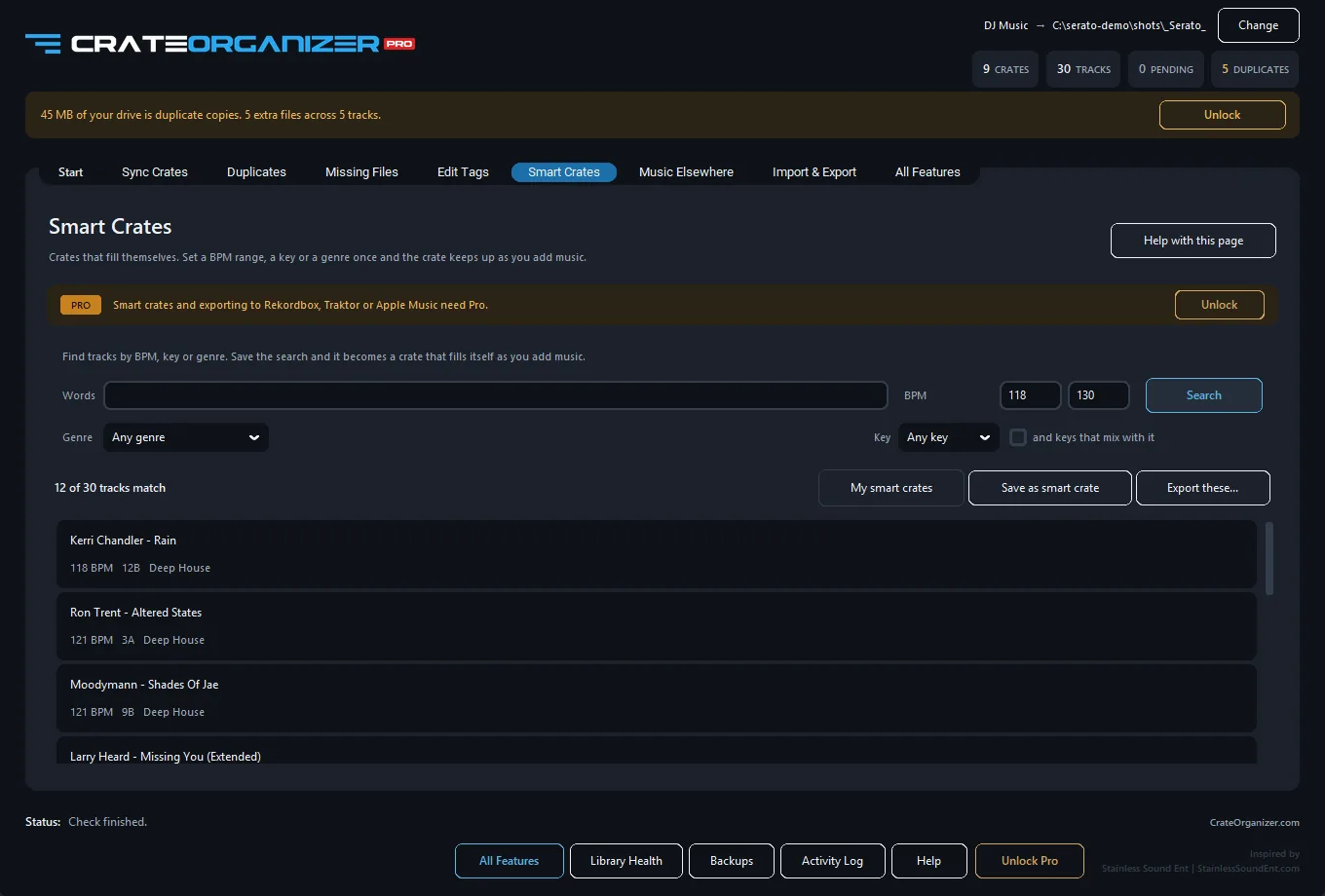
Save the search and the crate keeps itself up to date.
Crates that fill themselves. Pro.
Set a BPM range, a key, a genre or a word once, and save the search as a crate. It is an ordinary crate file, so it survives a library rebuild and opens in Serato like any other, and re-running the rule refreshes it as you add music.
Everything comes from what Serato already holds, so run Analyze Files first: a search for 124 to 132 BPM, or for 8A and the keys that mix with it, is only as good as the analysis behind it. Saved rules live in your settings and are listed on the page, ready to re-run.
Music elsewhere
For music kept outside your main folder: a second drive, a promo pool folder, a friend’s stick you copied to your desktop. Pro.
Point at each folder and give it a crate name of your choosing. Every linked folder is synced by the same Scan and Apply as everything else, and you get one plan covering all of them rather than one per folder. Two links that would write the same crate are reported rather than merged, because silently combining them would put tracks in a crate you never asked to hold them.
Every linked folder still has to be on the same drive as your Serato library, for the same reason as the main one.
Import and export
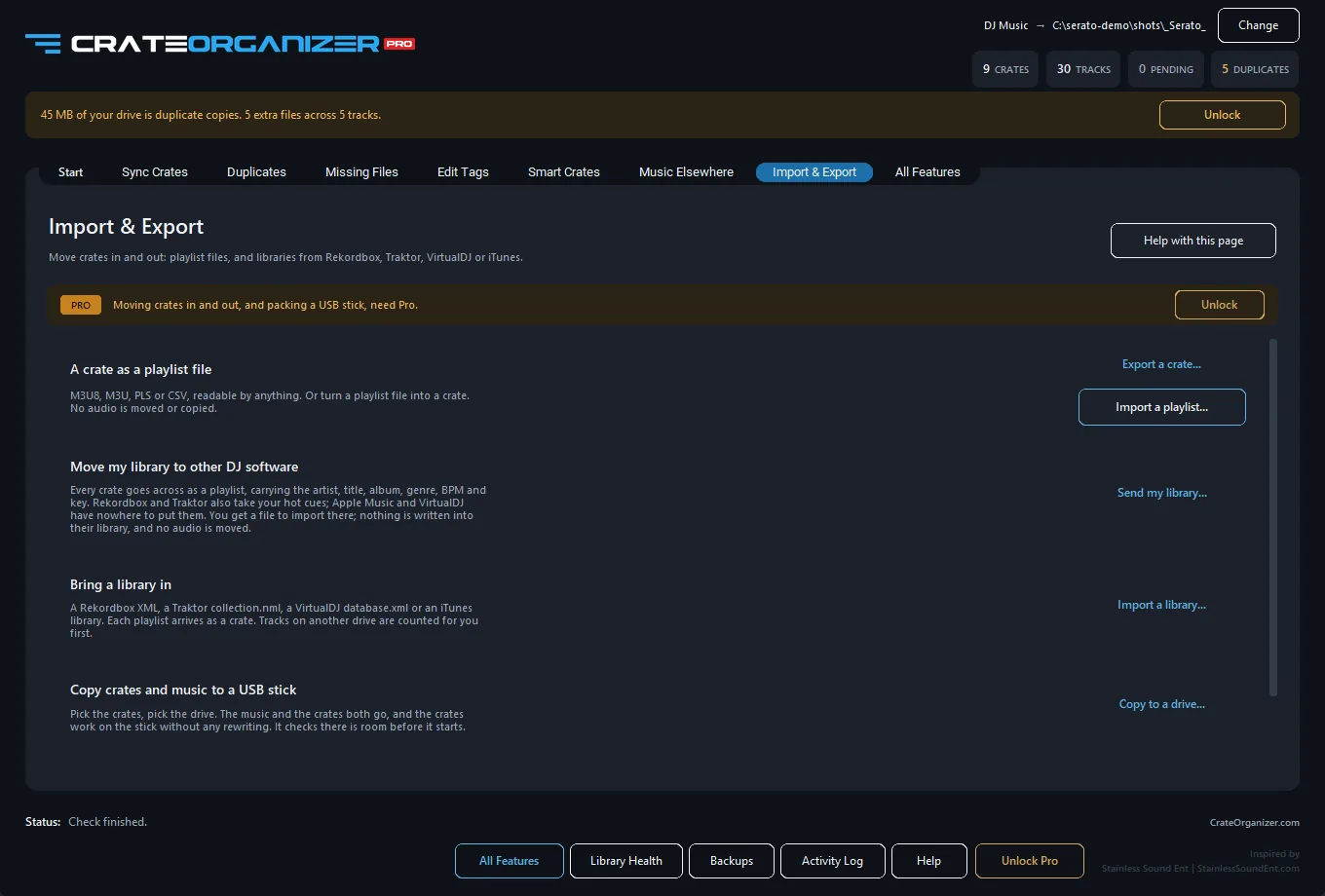
Everything that moves music in or out, on one page.
Every way music moves in and out, on one page. Pro.
| A crate out as a playlist | Any crate becomes an ordinary .m3u8 playlist file, carrying artist, title, album, genre, BPM and key. |
|---|---|
| A playlist in as a crate | Point at a playlist file and it arrives as a crate, with anything it could not find listed rather than silently dropped. |
| Moving to Rekordbox or Traktor | Your crates are written out in the format that software imports, with the BPMs, keys and genres you already tagged. Your Serato library is not changed, and no audio is moved or copied. |
| Bringing a library in | Rekordbox, Traktor, VirtualDJ or iTunes. Every playlist arrives as a crate. |
| Which of these songs do I own? | Paste a client’s list or a promoter’s set list. You get a crate of what you have and a shopping list of what you do not. |
Pack a USB stick for a gig
Choose the crates you want. The music is copied to the other drive and a matching Serato library is written there, so the crates work on the stick with no setting up at the venue. Pro.
The app checks there is room before it starts, skips files that are already there and identical, and tells you what it copied and what it skipped.
Start my library over
Empties the library completely and rebuilds it from your folders. Free.
This is the one place where crates you made by hand are also removed, along with the track list and Serato’s database, which is why it takes a full backup first and asks you to type WIPE before it does anything. Use it when a library has become a mess and the folders are the truth.
Backups, undo, and the Recycle Bin
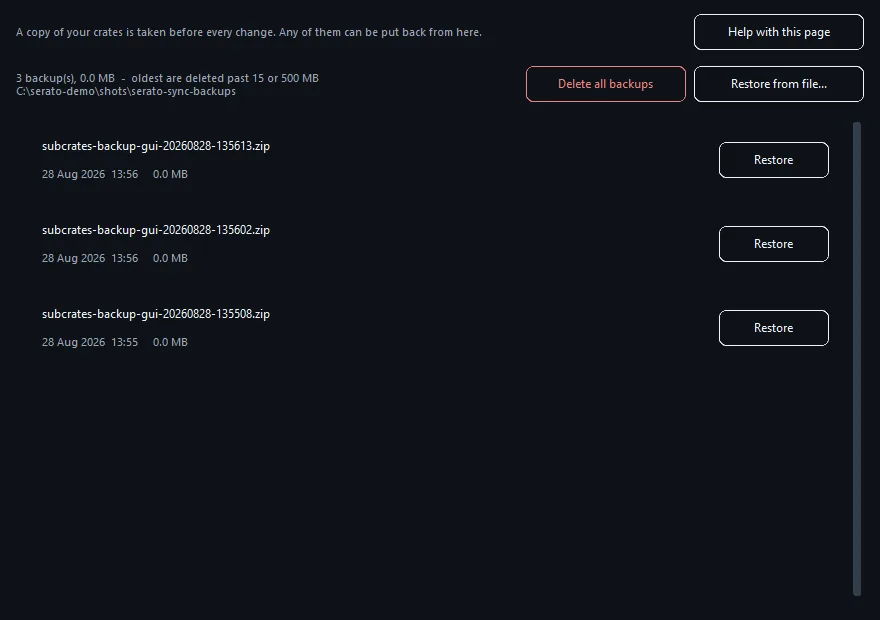
Every write leaves one of these behind. Restore is one click.
| Crate backups | Every write copies all your crate files into a timestamped zip in a serato-sync-backups folder beside your Serato library. Backups never overwrite each other. The Backups button lists them with dates and sizes and restores any of them in one click. |
|---|---|
| How many are kept | The oldest go once there are more than fifteen, or once the folder passes 500 MB, whichever comes first, so they cannot fill a gig drive. |
| Tag and rename undo | Their own journals, in the same folder. Undo on the Edit Tags page reverses the last batch, whichever kind it was. |
| Deleted duplicates | Go to the Windows Recycle Bin, never straight to nothing, and can be restored from there. |
| Serato’s database | Backed up before any change to it, which only happens when you remove missing entries or start a library over. |
Where your settings live
Not a cookie, nothing online. A plain JSON file on your machine:
%APPDATA%CrateOrganizersettings.json
It holds your music folder, your Serato library, the scan settings, the parent crate name, hidden libraries, the watch switches, your Edit Tags columns and their widths, your licence and the window size. It is written when something changes and read on launch, and it sits outside the app folder deliberately, so replacing or reinstalling the exe never loses it.
Two things live with your library rather than with your machine, because they belong to the music: unfinished tag edits, and every backup and undo journal. Those are in serato-sync-backups beside the _Serato_ folder.
Troubleshooting
Windows says “Windows protected your PC”
Normal on first run for a new app. Choose More info, then Run anyway.
The app says it cannot write while Serato is open
Close Serato. It keeps its library in memory and saves it back over anything changed while it is running, so a write landing then would simply be undone.
My library picker is empty although a library is set
Fixed in current builds: the library you have selected is always put into the list, including one that lives inside your music folder rather than at the root of the drive. Update to the latest version.
It says my library uses a schema it has not been verified against
A newer Serato than this build has been tested with. You can look at everything; writing is disabled rather than risking a library format nobody has checked. Update the app.
I pressed Scan and nothing seemed to happen
The list appears on the Sync Crates page, which the button now opens for you. If the page is empty, check the status line at the bottom: it says what the app is doing or what it is waiting for.
A whole crate vanished after I turned on removal
Open Backups and restore the copy taken immediately before that write. Removal is off by default, and even on it only reaches crates built from your folders unless you also turned on the second switch.
Serato does not show the new crates
Serato reads crate files when it starts. Close it and open it again. If they still do not appear, check that the library you synced to is the one Serato is using: the header of the app shows the exact path.
The BPM or key column is empty
Those come from Serato’s own analysis. Run Analyze Files in Serato, then re-open the page.
Still stuck? Get in touch and say which page you were on and what you expected. The Activity Log at the bottom of the app window has a timestamped record of everything it did, and Help can open the folder that log is written to.
Free and Pro
Syncing your folders into crates is free, for as long as you like, on as many libraries as you like. So is starting a library over, checking your library’s health and reading the score, scanning for duplicates to see what they are costing you, and listing what is missing.
Pro unlocks the cleanup and moving tools: reviewing and deleting duplicates, putting moved tracks back or relinking them, removing missing entries, tag editing and renaming, smart crates, linked folders, playlist import and export, moving to other DJ software, and packing a USB stick. One licence covers one computer. See what Pro costs.