
The complete guide
Serato crate sync: how to keep your folders and your crates in step
Serato crate sync means keeping your Serato crates matching the folders your music actually lives in. Serato has no built-in way to do it, so most DJs drag folders in by hand and repeat the job every time they buy music. A folder-to-crate tool does the same work in one pass and keeps it current.
Serato automatically syncs crates when you modify your music library or folder structure, but you may need to refresh manually by right-clicking your crate and selecting Sync or by restarting Serato. To keep folders and crates aligned, import new music into existing folders rather than creating new root directories.
Contents
Why Serato will not do this for you
Serato stores a crate as a small file listing paths to tracks. It does not watch your drive, and it has no concept of a folder being the source of truth for a crate. Drag a folder in once and you get a crate. Add three tunes to that folder tomorrow and the crate does not change.
Ask on any DJ forum whether you can turn folders into crates automatically and the answer is short. On the most-read thread about it, the accepted reply is a flat “No. You can’t do that.”
This is the gap the whole category exists to fill. Serato is excellent at playing music and indifferent about organising it. That is not a criticism, it is just where the product line was drawn.
What Serato crate sync actually means
Three different jobs get called the same thing, which is why advice online contradicts itself. A proper Serato crate sync covers all three.
| Job | What it means | How often you need it |
|---|---|---|
| First build | Turn an existing folder tree into crates and subcrates | Once, at setup |
| Top-up | Add only newly downloaded tracks to the crate they belong in | Every time you buy music |
| Repair | Fix crates pointing at files that moved or were renamed | After every drive change |
Most guides only cover the first. The second is where the hours actually go, and the third is where crates get lost.
The manual method, done properly
If you would rather not install anything, this is the version that does not create duplicates:
- Close Serato first. Serato writes over anything changed underneath it, so tidying done with it open can vanish.
- Open the Files panel in Serato and browse to your top-level music folder.
- Drag the folder onto the crate area, not onto All. Dropping onto All is the most common cause of a duplicated library.
- Repeat for every subfolder you want as a subcrate. Serato will not walk the tree for you.
- Sort by Date Added afterwards to confirm what actually landed.
One DJ described building a 220 GB library this way as about eight hours of dragging. The reply underneath was “Same lol”. That is the real cost of doing it by hand.
The community workarounds and where they break
Three workarounds circulate. Each helps someone, none is a general answer.
- Serato’s Auto Import folder. Now marked LEGACY in Serato’s own documentation and only ever intended for Whitelabel files. See what changed in Serato 4.0.
- Community scripts on GitHub. They work, but they need Java, run from a command line, and at least one handles MP3 only and silently skips FLAC.
- Rebuilding by hand every time. Reliable, and the reason library management is most DJs’ least favourite job.
Syncing folders to crates automatically
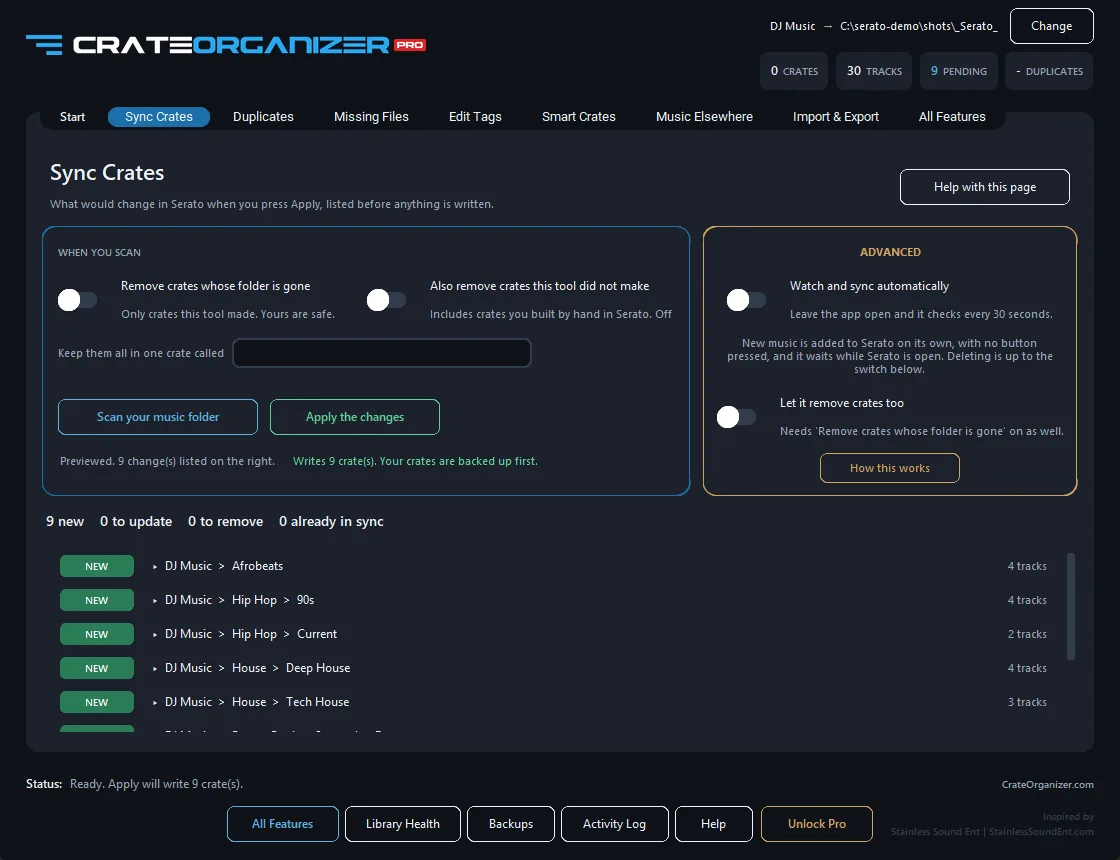
The alternative is a tool that reads your folder tree, writes the matching crates and keeps them current. CrateOrganizer Pro does this on Windows, and the syncing half is free forever.
- Every folder becomes a crate and every subfolder a subcrate, however deep the tree runs
- You see the whole plan before a single file is written
- Watched folders pick up new music on their own, adding only what is new
- Crates you built by hand in Serato are never touched
- Crates are zipped and timestamped before any write, restorable in one click
- It refuses to run while Serato is open
The last two matter more than the feature list. Every DJ who has been burned by a library tool asks the same two questions first: what does it write, and can I undo it.
Five mistakes that cost people their crates
- Tidying with Serato open. Serato saves its own version of the library on exit and overwrites your changes.
- Dropping folders onto All instead of a crate. This is what produces a library where every track appears twice.
- Renaming files after they are in the library. Serato matches on the path, so a rename breaks the link. See fixing missing files.
- Trusting one rolling backup. If the problem went unnoticed for a week, the backup contains the problem too.
- Letting the drive letter change. Windows reassigns letters when you plug things in a different order, and every path in your library breaks at once.
Questions
Does Serato have a folder sync feature?
No. Serato imports a folder once when you drag it in. It does not watch the folder afterwards, and it will not recreate a folder tree as crates and subcrates.
Will a Serato crate sync touch my music files?
No. Crate syncing writes crate files only. It does not move, rename or edit your audio. Tag editing and file renaming are separate features that say so before they run.
Can I sync only part of my library?
Yes. Point it at one folder rather than the whole drive. Crates outside that tree are left alone.
What happens to crates I built by hand?
Nothing. Only the folder tree you point the app at is managed, and crate removal is opt-in and confined to that tree.
Does this work with Serato DJ Lite?
Yes, Pro and Lite both. Crates work the same way in each.
Sources and further reading
- What is in the _Serato_ folder, Serato Support
- Backing up and moving your library to a new computer, Serato Support
- Import folder structure into the crates system, Serato forum
Written from Serato’s own documentation, the official Serato forum and the working DJs who post about these problems. Where a quote appears, it is copied exactly, typos included.
Frequently Asked Questions
What is crate sync and why would I use it?
Crate sync keeps your folder structure and Serato crates aligned when you move or rename files. Without it, Serato can lose track of which tracks belong in which subcrates, especially across multiple folders.
How do I sync my folder structure to Serato crates?
Use Serato’s folder import feature or drag your folders into the crate panel. Serato will create a matching crate hierarchy. Subcrates map to subfolders automatically.
Will renaming my music folders break my crates?
Yes, unless you sync before renaming. Always sync your crates to the new folder structure after any rename operation, or Serato will show grey tracks and broken links.
Can I use CrateOrganizer to help organize my crates?
Yes. CrateOrganizer can help you visualize and manage your crate structure, then sync the results back to Serato after you’ve reorganized.