
You can rename files without breaking Serato. Here is how.
Ask how to rename files without breaking Serato and the answer you get is always the same: don’t. It is good advice given the tools most people have. It is also a workaround dressed up as a rule, and it leaves DJs stuck with filenames they hate for years.
Renaming files outside Serato breaks links because the database stores exact file paths. Use Serato’s built-in rename or right-click Relocate to update the path, or bulk-rename via CrateOrganizer to keep crates and cues intact.
Why the standard advice exists
The usual warning is blunt and well meant: “My advice: don’t mess with audio file names and storage locations once they are part of your DJ software library.”
It exists because of one design decision. Serato identifies a track by its path. Change the name and the path changes, so as far as Serato is concerned the old track vanished and a new unknown file appeared. Your cue points stay attached to a file the library can no longer see.
And renaming inside Serato does not help
This trips up nearly everyone. Editing the artist or title in Serato edits the tag, not the filename. One DJ spelled out the loop it puts you in:
“If you rename the file in Serato it does not change it wherever you store all of your music… So it will change the name in Serato for the time being but then as soon as you update that folder with new music it reverts it back to whatever you had before… I have been using Serato for a decade now and I feel that it is ridiculous that I still have not figured out how to properly rename songs in this software.”
And Serato’s repair tool cannot rescue you
Relocate Lost Files matches on filename. It is built for files that moved, not files that were renamed, so after a rename it will scan happily and find nothing. That is covered in full in the Relocate guide.
What safe renaming actually requires
Three things have to change together, in one operation:
- The file on disk. The easy part, Explorer does this.
- Serato’s database entry, so cue points, loops and grids stay attached.
- Every crate file that referenced the old path, and a track can sit in a dozen.
Do all three and nothing breaks. Do the first only and you have converted a tidy library into a red one. There is no partial credit here, which is why the community advice is simply never to try.
WAV files are the hard case
WAVs have no reliable tag container, so the filename often carries all the information there is. That makes renaming them more valuable and more dangerous at the same time, and it is the case general-purpose tools handle worst.
What breaks first, and in what order
If you rename with Explorer and open Serato, this is the sequence you get. Knowing it helps you spot how far the damage went.
- The track goes red. Serato looked for the old path and found nothing.
- It disappears from every crate it was in. Not deleted, just unresolvable, so a track in twelve crates breaks twelve times.
- Relocate Lost Files finds nothing. It matches on filename, and the filename is what you changed.
- Re-importing looks like a fix and is not. You get the track back with no cue points, no loops and no grid, as a brand new file.
Step four is where the real loss happens. The tracks were never gone; the work was thrown away recovering them.
WAV files are the hard case
WAVs have no reliable tag container, so the filename is often the only description a WAV carries. That makes renaming them more valuable, and more dangerous, than renaming an MP3. General-purpose tools handle this worst, because there is no tag to fall back on when the name changes.
A naming pattern that survives
If you are going to rename files without breaking Serato, decide the pattern once and apply it to everything. Changing your mind halfway is how libraries end up with three conventions running at once.
Artist - Title (Version).mp3, and nothing else- No track numbers. They sort your library by an order that means nothing across albums
- No BPM or key in the filename. Both live in tags and both change when you re-analyse
- No pool or store tags.
[DJCity]and_HQtell you nothing at a gig - Keep the version in brackets. Radio, Dirty, Intro and Acapella are the distinctions you need under pressure
Stripping store tags is not about tidiness. Those tags defeat duplicate detection, because the same record from two pools looks like two different files to anything matching on name.
The order that keeps you safe
- Close Serato. Renaming under a running Serato guarantees trouble.
- Back up your crates, and keep more than one restore point.
- Try twenty tracks first. Reopen Serato, check they are still linked and the cues are there.
- Then do the rest, once you have watched it work on your own library rather than mine.
Doing it in one pass
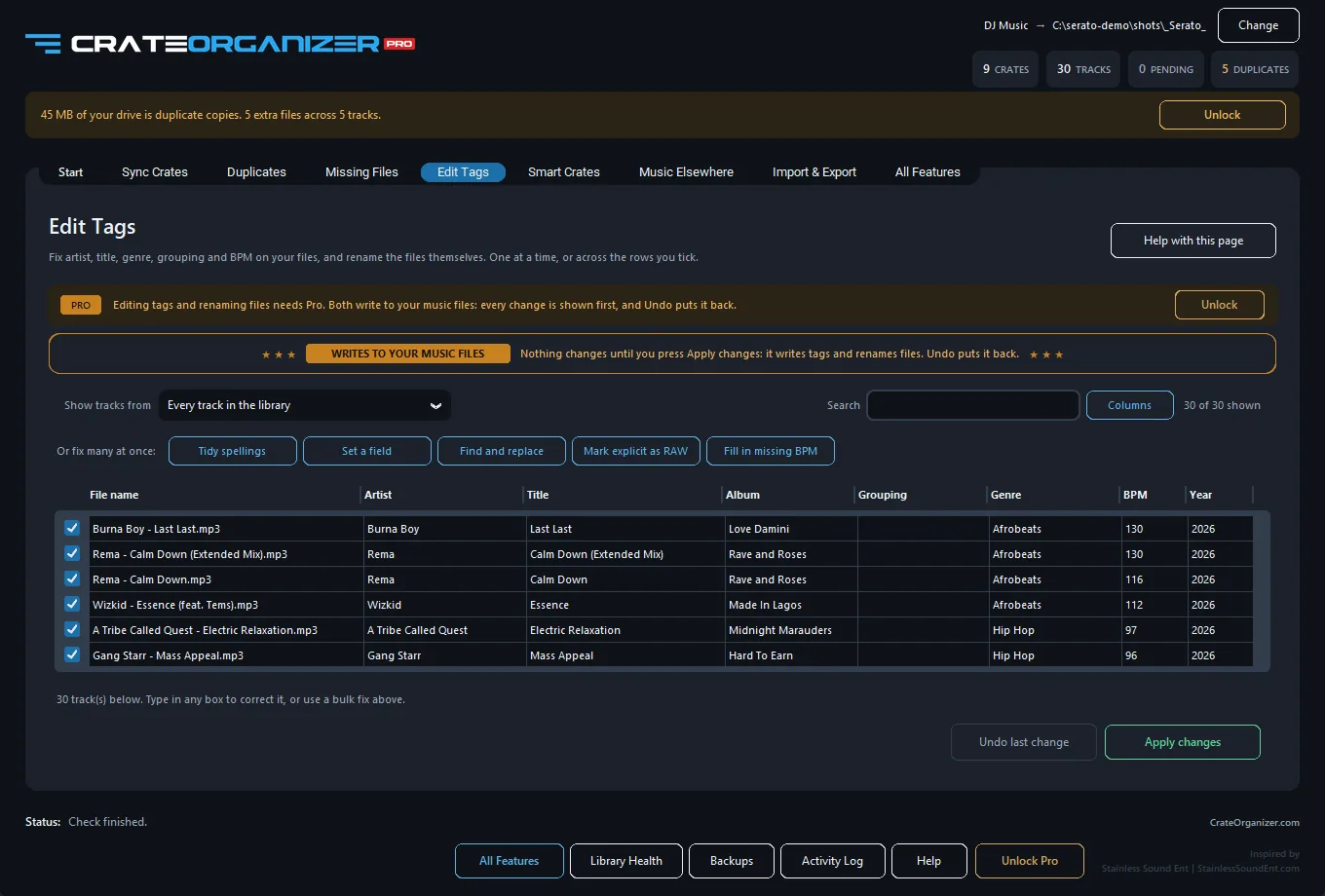
CrateOrganizer Pro renames the file, rewrites Serato’s database entry and updates every crate that pointed at it, as one operation. You see the full list of what would change before anything is written, and your crates are zipped and timestamped first.
What people mostly use it for is unglamorous: stripping the junk out of pool downloads, collapsing four spellings of one artist, and getting a decade of files onto one naming pattern without spending a weekend on it.
Download free for WindowsBulk edit tags
Background reading: Renaming and moving crates while importing files, Serato Support.
Frequently Asked Questions
What happens to Serato cues if I rename a track file?
Serato stores cues by file hash and metadata, not by filename. Renaming the file does not break the link or erase cues. Your cue data reloads when you re-open the track in Serato.
Will my crate entries update if I rename files outside of Serato?
Serato may show the track as red or orange until you run Relocate. The crate link breaks because Serato no longer finds the old filename. Relocate to relink or keep a backup filename log.
Can I rename files in bulk without breaking Serato?
Yes, but close Serato first and rename via MP3Tag or your file manager, then restart Serato and run Relocate Lost Files to relink the batch.
What if Serato cannot find a file after renaming?
Use Serato’s Relocate feature and browse to the track’s new location. Serato matches the file by metadata and restores the cue link automatically.