
When the built-in fix fails
Serato Relocate Lost Files not working: why it fails and what to do
Serato Relocate Lost Files not working almost always comes down to one thing: it matches tracks by filename. If your files only moved, it finds them. If they were renamed, it never will, however long you let it scan. Matching on tags, size and duration finds them instead.
Relocate failures occur when Serato cannot find the target file path or when the file is on a drive letter that has changed. Verify the file exists, ensure the drive is mounted with the same letter, or try manually re-importing the track instead.
Contents
The three ways it fails
“Serato Relocate Lost Files not working” covers three different failures. They look alike and have different causes, so work out which one you have before trying anything.
| What happens | Usual cause |
|---|---|
| It runs, finishes, finds nothing | The files were renamed, not just moved |
| It freezes partway through | Pointed at a drive root instead of a folder, so it is crawling everything |
| It finds some but not all | Mixed causes: some moved, some renamed, some on a drive that is not connected |
Why Serato Relocate Lost Files is not working: the filename problem
Serato records a path for every track. When you press Relocate Lost Files and give it a folder, it looks through that folder for files with the same filename as the ones it has lost.
So it handles a move perfectly. What it cannot handle is a rename. Clean up your filenames, strip the junk out of your Beatport downloads, and Serato has nothing left to match against.
This is the single most useful thing to know about the feature. It is not broken and it is not slow. It is doing exactly what it was designed to do, and the design does not cover the case most people hit.
A DJ who had just tidied his library described the result: “over half of my library is missing. I know where the files are but since the file names are now changed, the relocation tools aren’t recognizing them. I have over 1500 songs that are still missing.”
Running it correctly first
Before concluding it cannot work, make sure it had a fair chance:
- Open the Files panel.
- Press Rescan ID3 Tags and let it complete. Interrupting this is a good way to damage the database.
- Browse to the specific folder your music is in now. Not the drive, the folder.
- Drag that folder onto Relocate Lost Files.
- Leave it alone until it finishes, even if it looks stuck. On a large library it can take a long time.
If your music is spread across several folders, do them one at a time. Giving it a parent folder containing tens of thousands of files is what produces the freezes.
When it freezes or scans your whole computer
A common report: “it starts running through every file on my computer, not just the actual folder that I want to single out”, followed by a freeze.
- Give it one folder, never a drive root or your user folder
- Close everything else, especially anything indexing the same drive
- If the drive is external and on USB 2, copy locally first, relink, then move back
- If it froze partway, back up your
_Serato_folder before trying again
Serato Relocate Lost Files not working on an external drive
A large share of the reports come from DJs who keep their music on an external. Two extra things go wrong there.
- The drive letter changed. Windows assigns letters in plug order, so your music drive can come back as a different letter and every path breaks at once. Pin it in Disk Management and the problem stops recurring.
- The scan is slow enough to look frozen. Over USB 2, reading tags from thousands of files takes far longer than most people wait. Copy the folder to the internal drive, relink there, then move it back.
If Serato Relocate Lost Files is not working specifically after a drive swap, check the letter before assuming anything is broken. It is the cheapest possible fix and it accounts for a lot of the panic threads.
What to do when it genuinely cannot find them
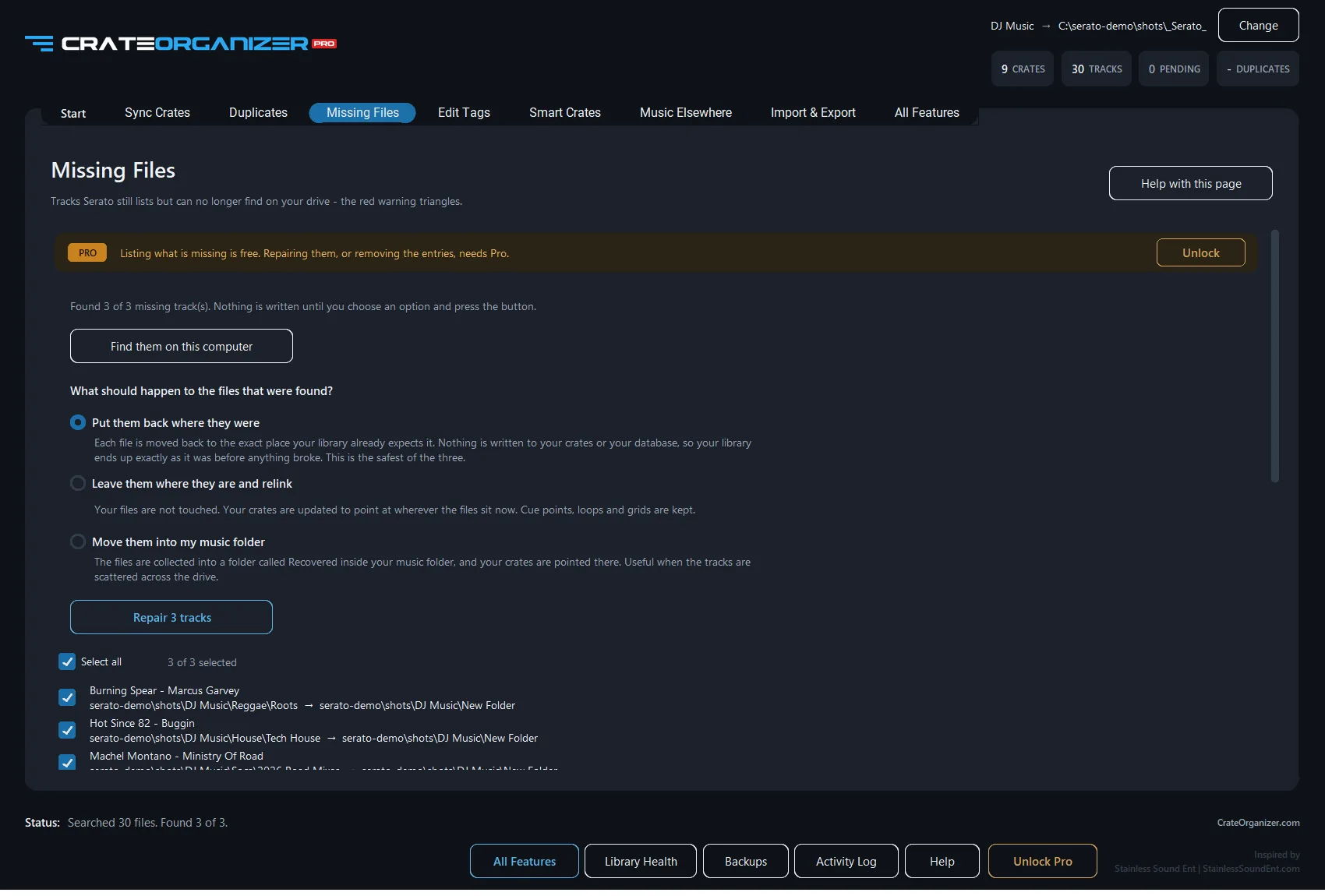
If the files were renamed, no amount of rerunning will help. You need matching that does not depend on the filename. CrateOrganizer Pro compares tags, duration and file size, so a track renamed from 01_artist_title_HQ.mp3 to Artist - Title.mp3 is still recognised as the same recording.
- Every missing track listed with artist and album, so you can see what you are fixing
- Drives that are simply unplugged are reported as offline, not deleted
- Cue points, loops, grids and ratings all survive
- Nothing is written until you approve the list, and crates are backed up first
- Three ways to finish it: put each file back where the library expects it, relink where it sits now, or gather them all into one folder. Serato’s own Relocate only ever does the middle one
So if Serato Relocate Lost Files is not working for you and the files were definitely renamed, the built-in tool is not going to get there however many times you run it. Background on the colours and the other causes is in the missing files guide.
Questions
Why does Relocate Lost Files find nothing?
Because the files were renamed rather than moved. Serato matches lost tracks by filename, so a changed name leaves it nothing to match on, no matter how long it scans.
Why does Serato freeze when I relocate?
It is almost always because it was given a drive root rather than a folder, so it is crawling every file on the disk. Point it at the specific folder your music is in.
Do I lose cue points when I relocate?
No. Relocating repairs the file path. Cue points, loops, grids and ratings stay with the track.
Is Relocate Lost Files safe to run?
Yes, but back up your crates first as a habit. The risk is not the tool, it is running repairs on a library with no restore point.
Does Serato 4.0 change any of this?
The relocate behaviour is unchanged. Serato 4.0 did retire the Auto Import folder, which is a separate issue covered in its own guide.
Sources and further reading
- What is in the _Serato_ folder, Serato Support
- Backing up and moving your library to a new computer, Serato Support
- Import folder structure into the crates system, Serato forum
Written from Serato’s own documentation, the official Serato forum and the working DJs who post about these problems. Where a quote appears, it is copied exactly, typos included.
Frequently Asked Questions
Why is Relocate Lost Files grayed out in Serato?
Relocate is disabled if all your tracks are online (green). It only activates when you have red or orange missing tracks. Use it to batch-relink multiple offline files at once.
Can I relocate a single track or must I do them all at once?
You can select specific tracks in a crate and right-click to relocate just those. Serato then asks you to browse to the new folder or file location for the batch.
What happens to my cues when I relocate a track?
Cues and loops follow the file because Serato matches them via file ID and metadata. After relocation, all your cue points restore automatically.
Relocate found some files but says others cannot be matched. Why?
Serato matches relocated files by filename and metadata. If you renamed the file or corrupted its ID3 tags, Serato cannot pair the old cue data to the new file. Rename back to original or fix tags with MP3Tag.