
Missing tracks
Serato missing files: what red, orange and yellow actually mean
Serato missing files appear when a track’s file has moved, been renamed or sits on a drive that is not plugged in. Serato stores the path, not the file, so any change to that path breaks the link. Relinking restores the track with its cue points, loops and grids intact.
Red, orange, and yellow tracks indicate missing or relocated files; reconnect them by right-clicking the offline tracks, selecting Relocate, and pointing Serato to the new file location. If multiple files moved together, use Relocate Folder to re-link them in bulk.
Contents
Red, orange, yellow and brown explained
DJs use four colour words for what is usually one problem, and the inconsistency makes searching for help harder than it should be. Here is the honest version.
| What you see | What it usually means |
|---|---|
| Red or orange track | Serato cannot find the file. It moved, was renamed, or its folder changed. |
| Yellow or greyed row | Same cause. Different Serato versions and themes colour it differently. |
| Brown or dull red | Usually a corrupt or unreadable file rather than a missing one. |
| Whole crate red | A parent folder moved or the drive letter changed, so every path in it broke at once. |
If a whole crate went red at the same moment, do not start fixing tracks one by one. Something structural moved, and one repair pass will fix the lot.
The five things that cause missing files
- You reorganised folders. The most common cause by far. Serato stores paths, so moving a folder breaks every track in it.
- You renamed files. Worse than moving, because Serato’s own repair tool matches on filename.
- The drive letter changed. Windows hands out letters in plug order, so an external drive can come back as E: instead of D:.
- The drive is not connected. These are not really missing, and a good tool reports them as offline rather than deleted.
- A tagging tool rewrote your files. Some tag editors rename as they write, which produces exactly this.
Before you fix anything, back up your crates. The repair is safe, but a mistake made on top of an unbacked library is the one that ends badly.
Using Relocate Lost Files properly
Serato has a built-in repair. It works when the file only moved. Use it like this:
- Open the Files panel in Serato.
- Click Rescan ID3 Tags and let it finish.
- Browse to the folder your music is in now.
- Drag that folder onto the Relocate Lost Files button.
- Wait. On a large library this takes a while, and interrupting it is how databases get damaged.
Point it at the specific folder, never at the whole drive. Given a drive root it will crawl everything, which is where the freezes people report come from.
Why Relocate fails after a rename
This is the part Serato’s documentation does not spell out. Relocate Lost Files matches on filename. If the file is in a new place but still called the same thing, it will be found. If the name changed, it will not be, no matter how long you let it scan.
That single fact explains most of the “Relocate Lost Files not working” threads. One DJ put it plainly after cleaning up his filenames: “over half of my library is missing. I know where the files are but since the file names are now changed, the relocation tools aren’t recognizing them.”
Matching on tags, duration and file size instead finds those tracks. That is what a dedicated repair tool does differently, and it is covered in the Relocate Lost Files guide.
Relinking hundreds of tracks at once
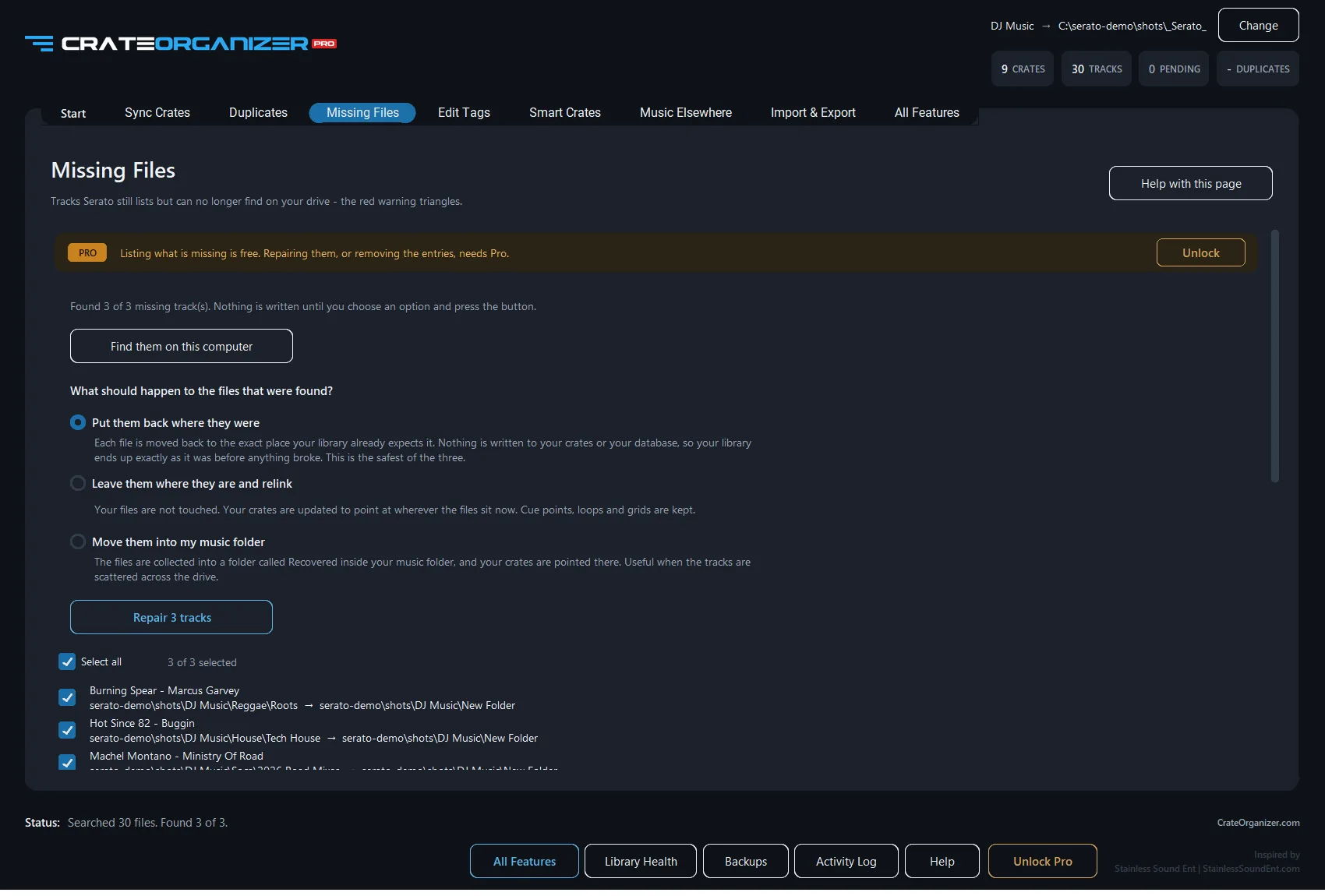
Fixing a handful by hand is fine. Fixing 1,500 is not, and that is a real number from a real thread. CrateOrganizer Pro lists every missing track with its artist and album, works out where each one went, and relinks them in one pass.
- Unplugged drives are reported as offline, never as deleted
- Matching uses tags, size and duration, so renamed files are still found
- Cue points, loops, grids and ratings survive the repair
- You choose what happens: put each file back where the library expects it, relink it where it sits now, or gather them all into one folder
- Nothing is written until you have seen the list
- Crates are backed up first, restorable in one click
Serato missing files on an external drive
Externals produce more Serato missing files than anything else, and for a reason that has nothing to do with Serato. Windows hands out drive letters in the order things are plugged in. Plug a phone in before your music drive one morning and the drive that was always D: comes back as E:. Every path in your library breaks at once.
The fix is to pin the letter:
- Right-click Start and open Disk Management.
- Right-click your music drive and choose Change Drive Letter and Paths.
- Set it to a letter high in the alphabet, say S: for Serato, that nothing else will claim.
- Reconnect and confirm it comes back as that letter every time.
Do this once and a whole category of Serato missing files stops happening. If the letter has already changed, relinking fixes the library in one pass rather than track by track.
An unplugged drive is not a missing file. If a crate has gone red and the drive is not connected, plug it in before you delete anything. Tracks reported as missing when the drive is simply absent are the most common cause of DJs deleting a working library.
Stopping it happening again
- Pick one music folder and keep it. Reorganising the drive is what starts this.
- Assign your external drive a fixed letter in Windows Disk Management so it always returns as the same one.
- Rename with a tool that updates the crates too, not with Explorer. See renaming without breaking crates.
- Back up before any big tidy, and keep more than one restore point.
Questions
Why are my Serato tracks red?
The file is not where Serato expects it. It moved, was renamed, or its drive is disconnected. The track itself is fine, only the path recorded in the library is wrong.
Will I lose my cue points if I relink?
No. Cue points, loops, beat grids and ratings are stored against the track in Serato’s database and in the file itself. Relinking repairs the path and leaves all of that alone.
What is the difference between red and orange in Serato?
In practice nothing. Different Serato versions and themes render the same missing-file state in different colours. Brown or dull red is the exception and usually means a corrupt file.
Can I just delete the missing tracks?
You can, but only do it once you are sure the files are actually gone. If the drive was simply unplugged you would be deleting a working library.
Does relinking work if I renamed the files?
Serato’s own Relocate Lost Files will not find renamed files because it matches on filename. Matching on tags, size and duration will.
Sources and further reading
- What is in the _Serato_ folder, Serato Support
- Backing up and moving your library to a new computer, Serato Support
- Import folder structure into the crates system, Serato forum
Written from Serato’s own documentation, the official Serato forum and the working DJs who post about these problems. Where a quote appears, it is copied exactly, typos included.
Frequently Asked Questions
What do the colored track indicators mean in Serato?
Red tracks are missing completely. Orange tracks are linked but the file has moved. Yellow tracks are linked but offline. Green tracks are fine.
How do I fix red tracks without losing my cues?
Use Serato’s Relocate feature to point Serato to the new file location. Your cues, loops, and metadata stay intact because Serato reads the embedded data from the file.
What causes orange and yellow tracks?
Orange appears when you move a file and Serato’s last-known path is invalid. Yellow happens when the file is offline (USB unplugged, drive asleep, or network unavailable). Reconnect or relocate to fix either.
If I delete a red track from my crate, do I lose my cues forever?
No. Serato stores cues in a separate database file in the _Serato_ folder. Deleting the crate entry does not erase the cue data. Relocate the track later and the cues reload.